


Facetime stands out as a preferred option for users of Apple when it comes to video conversations. And with the latest update, you’ll now get new features to plan video or audio calls more than ever. If you are wondering how to easily schedule FaceTime calls on your iPhone, iPad, or Mac? If you have any questions in your mind, then read this article completely.
Page Contents
- How to schedule FaceTime calls on your iPad or iPhone?
- How to Edit or Delete Schedule FaceTime Call on iPad or iPhone
- How to easily schedule FaceTime calls on Mac
- How to edit/delete a scheduled FaceTime call on Mac?
- How to share a FaceTime link to schedule a call
- FAQs
How to schedule FaceTime calls on your iPad or iPhone?
- First launch the CALENDER on your iPad/iPhone
- According to your choice, enter the TITLE of your event.
- Then tap the Video Call or Location → Select FaceTime when prompted.

- Set the date and time to start the call.
- Repeat: If you want to repeat this call, set the repeat rate.
- Calendars: Tap the Calendars option with multiple Apple IDs and choose the account that best suits your needs.
- Invited: Enter the email of the participants to generate the invite list for the event. Alternatively, tap the (+) icon to select invitees from saved contacts. Tap Done to save your preferences.
- Alert: You can choose a time slot to notify participants about an upcoming scheduled FaceTime event.
- Add Attachments: You can also share files to attach the files or documents.
- URL/Notes: Finally, depending on the situation, you can add a URL to each invitation or tag a note with the invitation.
- Once you have completed the event setup, then click the Add button to start the process.

How to Edit or Delete Schedule FaceTime Call on iPad or iPhone
-
- First launch Calendar and then find the scheduled FaceTime event.
- Tap on the event you want to modify → Click on Edit.
- Once edited, click on the Done button to save the changes.
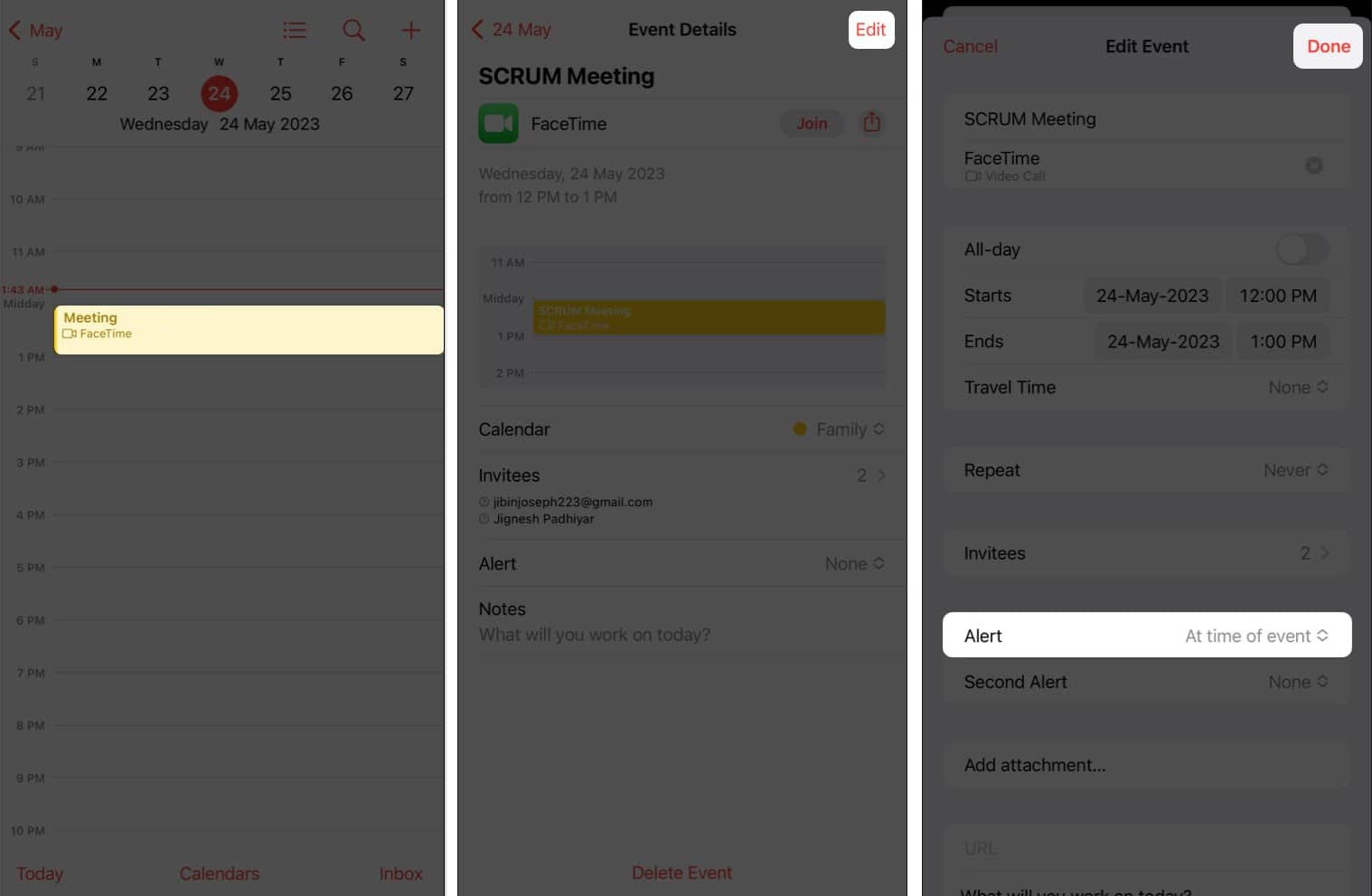
- However, see below if you want to delete the session.
- Open the event in Calendar → then click the Delete button to delete the event → click Delete Event when prompted.

Read this “How To Earn Money Online Without Investment: A Step-by-Step Guide”
How to easily schedule FaceTime calls on Mac
- First open Calendar on your Mac.
- Click on the (+) plus icon → Now name the event.
- If you need to change your preferences, press or select the Return button.
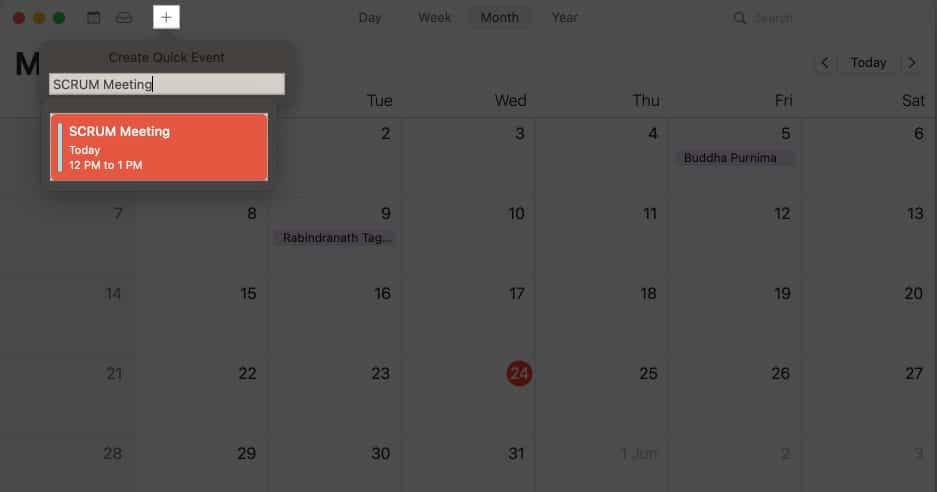
- When prompted, click Add location or video call.

- Type Facetime & select Facetime in the results.

- Alternatively option, you can also tap on the camera icon and select FaceTime directly.

- Here, you can modify the event to your liking.

How to edit/delete a scheduled FaceTime call on Mac?
- First launch Calendar then find the event you want to edit or delete.
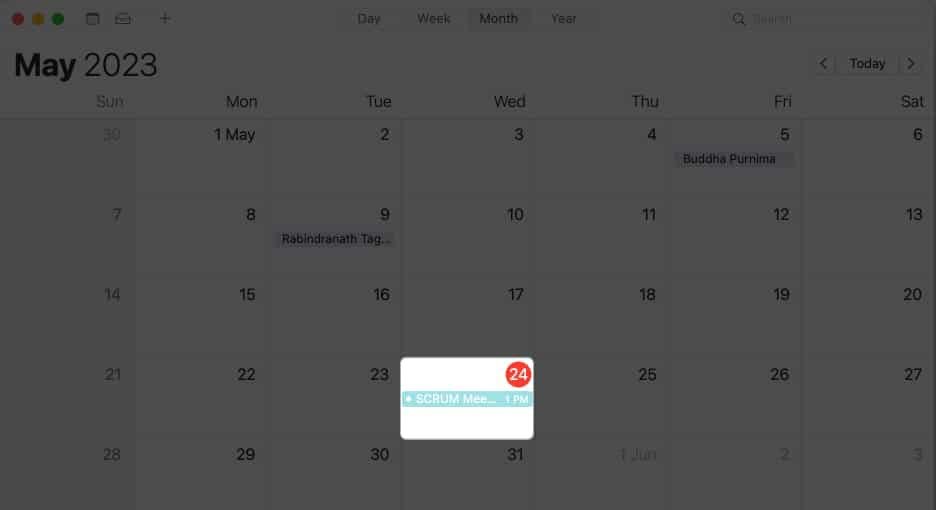
- Right-click on the event and access the Get Info option.

- Now, make the necessary changes and close the pop-up window.

Note: To delete a scheduled call then right-click on the event → Delete it.

 Read this nextWhat’s coming for Apple lovers in 2025? Full List by Raj Tech
Read about Blogging Post & ask questions about your Problems
How to share a FaceTime link to schedule a call
The techniques for scheduling FaceTime calls are extremely convenient. But you wait till, I tell you about the next point. Did you know that you can organize a FaceTime call and share its link? The recipient can then use this link to go on the call as many times as possible at the appropriate time.
On iPhone and iPad
- Open FaceTime on your device.
- Tap the Create link.
- Share it through any medium possible for you.

On Mac
- Launch FaceTime → Click Create Link.

- You will be presented with a list of options that you can use to share the link with the important user.

Note: This link can only be deleted by the owner and is set indefinitely. So you can use it again and again if you want.
Read this “Capcut Temple New Trend: Enhance Your Videos With Capcut New Template”
FAQs
Can I use FaceTime on 2 devices?
Yes, you can do it on your 2 devices. You can also add more devices using the same Apple ID. You just need to associate different email addresses for each device.
Can you schedule your iPhone to make a call?
On iPhone, the call timer app works well. It also allows scheduling Calls. It will remind you from time to time when you have scheduled to call. The call scheduler app is suitable for all iOS devices.
Can an Android join a FaceTime call?
Yes, any Android users can join FaceTime Call links. But it makes sure that the device has the latest version of the Chrome app.
Can Windows users join a FaceTime call?
Yes, any Windows users can join FaceTime Call links. But it makes sure that the device/OS has the latest version of Chrome/Microsoft Edge software.
On FaceTime, Can I schedule a group video call?
Yes, you can schedule a group video call on FaceTime by using the “Invitees” option. This helps you add multiple participants to the event.