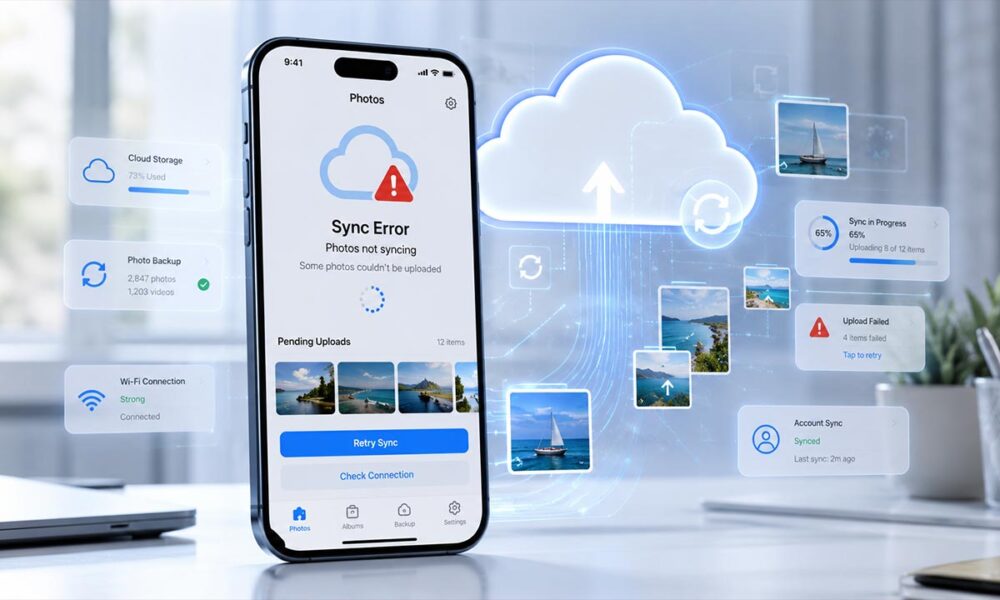
Picture this: You’ve just returned from an amazing vacation with over 500 photos sitting on your iPhone. But when you open the Photos app on your Mac to view them on the big screen—nothing has synced. It’s incredibly frustrating.
Your first thought? “Maybe my Wi-Fi is slow.”
Your second? “Apple’s servers must be down.”
So, you open Settings, toggle your Wi-Fi on and off, and restart your phone. Yet, the photos remain stubbornly stuck on your iPhone. This is arguably the most common headache users face with iCloud Photos. The worst part? There’s rarely an error message. Everything looks perfectly normal, but the sync just refuses to happen.
The good news is that this is almost never a hardware issue. Syncing usually stalls due to a few hidden settings, storage limits, or temporary network glitches. In this guide from Raj Tech Blog, we’ll walk you through exactly how to force your iCloud Photos to sync—from the simplest quick fixes to advanced troubleshooting.
Why is iCloud Photos Not Syncing?
To fix the problem, it helps to understand how the system works. iCloud Photos is designed to run quietly in the background. Whenever you snap a photo, it saves to your iPhone’s local storage first, then uses the internet to upload a copy to Apple’s cloud. Only after that upload finishes can your Mac or iPad download the image.
If anything interrupts that invisible pipeline, the sync gets paused. The most common culprits include:
- A weak or unstable internet connection
- Low Power Mode restricting background activity
- Maxed-out iCloud storage (very common on the free 5GB tier)
- An Apple ID authentication glitch
- Low iPhone battery
- Apple’s own servers facing downtime
Simply put: It’s not always your phone’s fault. Let’s get it fixed.
Solution 1: Refresh Your Network Connection

iCloud Photos completely relies on a solid internet connection. And here’s the catch: just because your Wi-Fi is fast enough to load a webpage doesn’t mean it’s stable enough to upload thousands of high-res photos.
- Go to Settings > Wi-Fi, turn it off for 10 seconds, and turn it back on.
- If you’re relying on Mobile Data, ensure you’ve given the Photos app permission to use it (Settings > Cellular > scroll down and toggle Photos ON).
- Try toggling Airplane Mode ON and OFF.
If it’s still stuck, try connecting to a completely different Wi-Fi network. Sometimes, a fresh IP address is all it takes to kickstart a stalled sync.
Solution 2: Check Your iCloud Storage Space
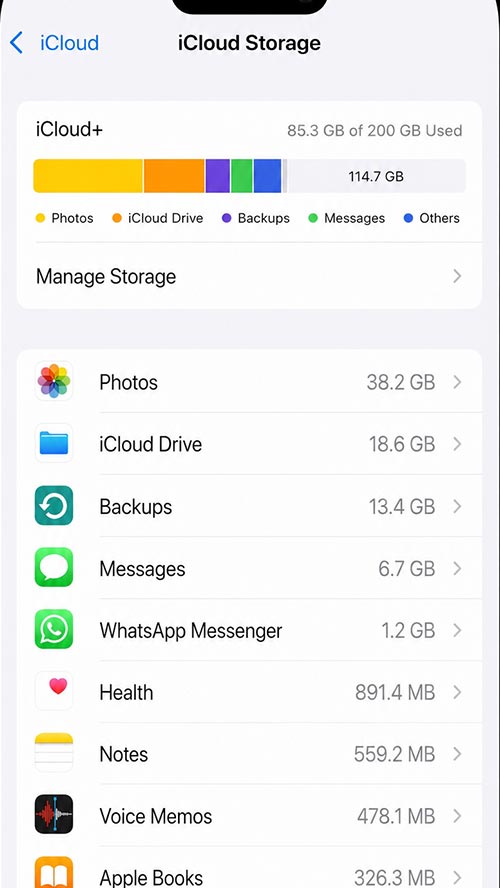
If you are still on Apple’s free 5GB plan, this is almost certainly your issue. When your iCloud storage is full, the syncing process hits a brick wall.
How to check:
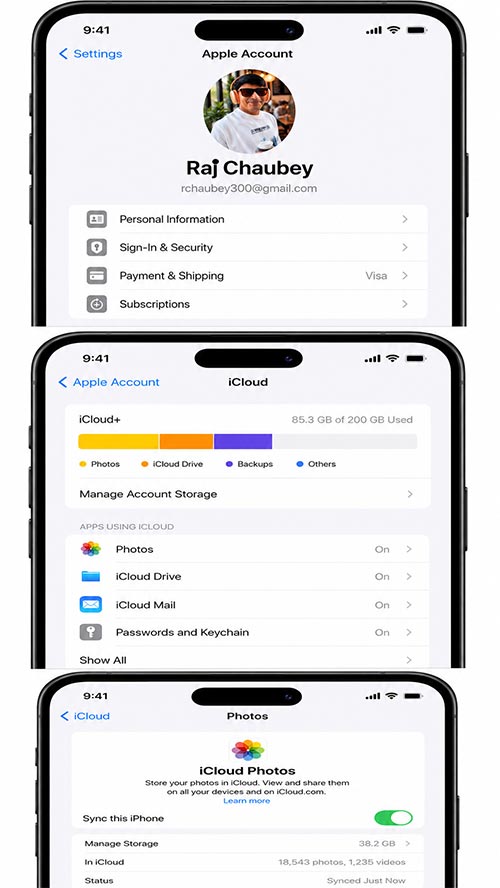
Go to Settings > [Your Name] > iCloud. Look at the storage bar at the top.
If it’s full or almost full, you have three options:
- Delete old device backups you no longer need.
- Clear out large videos or unused files from iCloud Drive.
- Upgrade to an iCloud+ paid plan for more space.
If the cloud has no room, your photos have nowhere to go.
Solution 3: Verify iCloud Photos is Actually Enabled
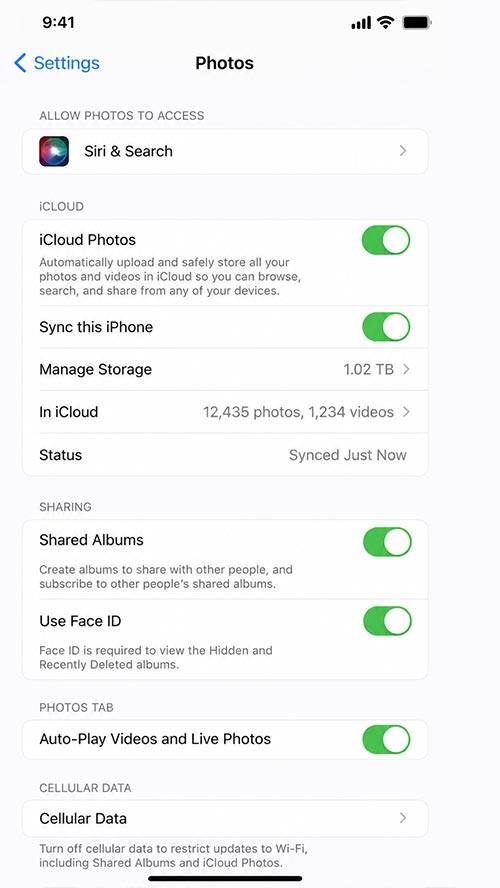
It sounds obvious, but occasionally a major iOS update or a device restore can toggle your settings off without you realizing it.
How to verify:
Go to Settings > [Your Name] > iCloud > Photos.
Ensure that Sync this iPhone is turned ON.
If this switch is off, your photos are trapped locally on your device.
Solution 4: Turn Off ‘Low Power Mode’
When your battery icon turns yellow, your iPhone is in Low Power Mode. To save battery, iOS aggressively pauses background tasks—and iCloud photo uploading is usually the first thing to get cut.
The Fix:
- Plug your phone into a charger.
- Go to Settings > Battery and toggle OFF Low Power Mode.
- Connect to a strong Wi-Fi network.
Leave the phone alone for a few minutes. Syncing often resumes automatically once the phone realizes it has unlimited power and data.
Solution 5: Check Apple’s Server Status
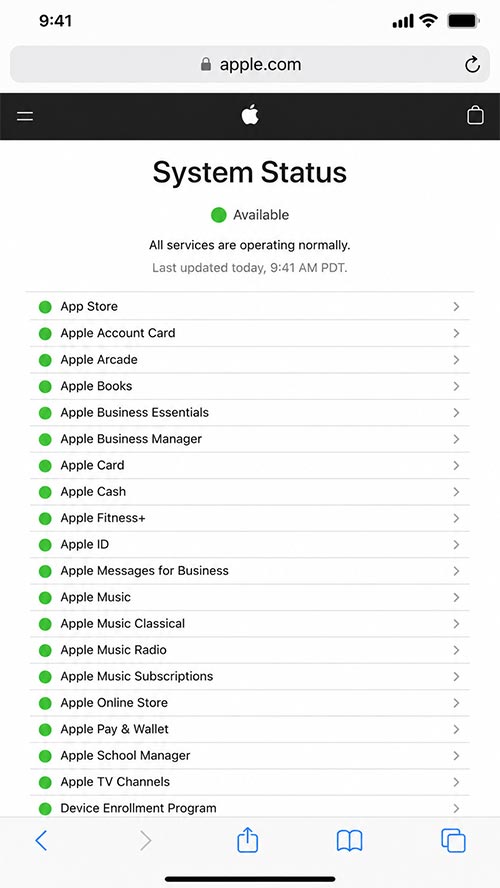
Done all of the above and it’s still not working? The problem might not be you—it might be Apple.
Apple routinely performs server maintenance, and sometimes services go down. Head over to the official Apple System Status page and look for iCloud Photos. If the dot next to it is yellow or red, you’ll just have to be patient and wait for Apple to resolve the outage.
Solution 6: The Classic iPhone Restart
It’s the oldest IT trick in the book because it works. Restarting your iPhone clears the RAM and forces all background services to boot up from scratch. If the internal syncing mechanism got “stuck,” a quick reboot is often the easiest way to push it back into gear.
Solution 7: Update iOS to the Latest Version
Bugs happen. Older versions of iOS occasionally suffer from known syncing glitches that Apple silently patches in newer updates.
Go to Settings > General > Software Update. If an update is waiting for you, install it.
Read this: Lost iPhone? Quickly do these 10 things and get your iPhone back (2026 Guide)
The Secret “Catch” Most People Don’t Know
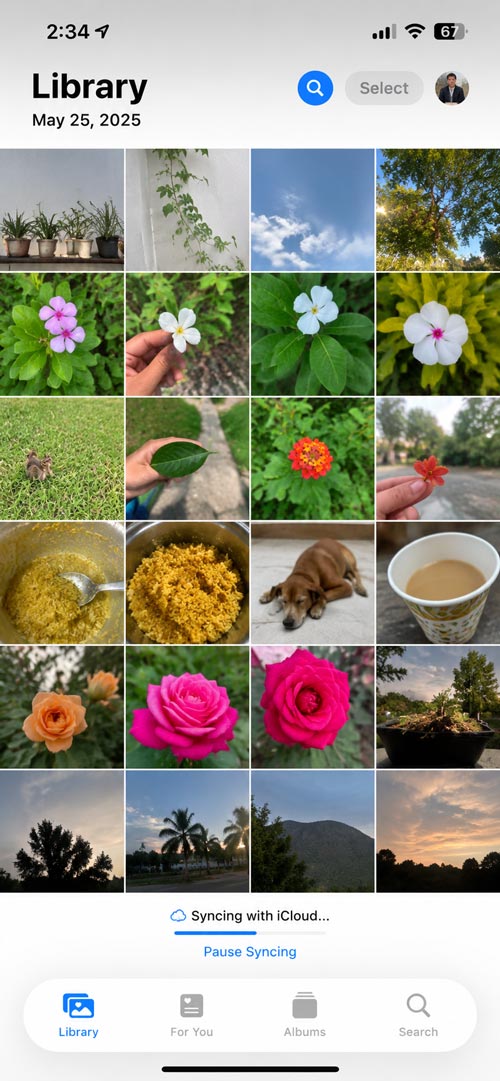
This is where the biggest misunderstanding about Apple’s ecosystem lies. People assume photos upload instantly. They don’t.
Apple intentionally throttles or pauses iCloud syncing if your phone is running hot, the battery is low, or you are trying to upload a massive batch of photos (like 500 vacation shots) at once. This isn’t a bug; it’s a deliberate design choice to prevent your phone from overheating or draining its battery in 20 minutes.
The ultimate fix? Plug your phone in, connect to Wi-Fi, and go to sleep. A heavy initial sync can easily take overnight to finish.
Read this: How to Use Find My iPhone? Complete Guide to Find, Lock & Track Your iPhone (2026)
What NOT to Do (Common Mistakes)
When you’re frustrated, it’s easy to make things worse. Avoid doing these:
- Don’t constantly restart your phone every 5 minutes (it resets the sync process).
- Don’t sign out of your Apple ID unless absolutely necessary (this can cause massive photo duplication headaches later).
- Don’t delete photos from your gallery thinking it will “free up space” for the sync.
- Don’t ignore low storage warnings.
Read this: WhatsApp Payment Option Not Showing on iPhone? Here’s How to Fix It!
When is it Time to Contact Apple Support?
You should escalate the issue to Apple Support if:
- You’ve tried everything above and the sync hasn’t budged after 24 hours.
- The issue is happening on only one specific device, while others sync fine.
- You are seeing random error codes.
- Photos are inexplicably going missing from your library.
- Final Thoughts from Raj Tech Blog
If your iCloud Photos are stalled, don’t panic. In 99% of cases, you aren’t dealing with a broken phone or corrupted data. It usually boils down to a lack of storage, a weak Wi-Fi signal, or background throttling to save battery. Run through the checklist above, plug your phone in tonight, and you’ll likely wake up to a perfectly synced library.
(Note: This guide applies specifically to Apple’s iCloud ecosystem. If you use Google Photos or Amazon Photos as your primary backup, your troubleshooting steps will look very different.)
Read this: Simple Steps to Customize iMessage Profile on your Apple Devices (iPhone or iPad)
Frequently Asked Questions (FAQs)
Does iCloud Photos take a long time to sync?
Yes. If you are uploading a large batch of photos for the first time, or syncing 4K videos, it can take anywhere from a few hours to over a day, depending on your internet upload speed.
Can iCloud Photos sync over Cellular Data?
Yes, but you must manually grant the Photos app permission to use cellular data in your Settings. Keep in mind, Wi-Fi is highly recommended to avoid exhausting your mobile data plan.
Will photos sync if I only have the free 5GB iCloud plan?
Yes, but only until you hit that 5GB cap limit. Once it’s full, syncing stops entirely until you clear space or upgrade your plan.
My photos say they uploaded, but I don’t see them on my iPad?
Double-check that both devices are signed in using the exact same Apple ID, and ensure iCloud Photos is toggled “ON” on the iPad as well.
What is the difference between iCloud Photos and an iCloud Backup?
iCloud Photos specifically syncs just your image and video library across devices. iCloud Backup takes a snapshot of your entire phone—including app data, messages, settings, and home screen layouts—so you can restore it if you buy a new device.
Read this: WhatsApp Payment Option Not Showing on iPhone? Here’s How to Fix It!